Add a new customer#
Tip
See the nginx-alertreceiver documentation for more details.
In this section, replace $new_client with the name of new customer.
Warning
For NGOT, $new_client must match the client_name in the contract zone. Example :
"obs-pf": {
    type: "contract"
    ...
    client_name: "pf"
}
The different steps are :
- verify and complete the dictionary transmitted by the client
- request an internal api key
- prepare MR
- CAASCHR
- run
nginx-alertreceiverconfiguration with bootstrap mode - edit newly created secret in Vault
- edit
nginx-alertreceiverconfiguration and run it - communicate external api key to the new customer (only to be done for external sources)
- redeploy Alertmanager (only to be done for Caascad/NGOT Alertmanagers)
- verification
- run
These steps are detailed below.
Note
If the folder for the client's internal API key already exists in Vault:
- get the api key
- keep it for future steps
- delete the client's folder
Dictionary verification and additions#
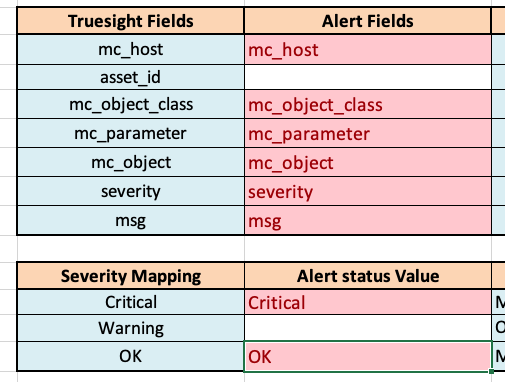
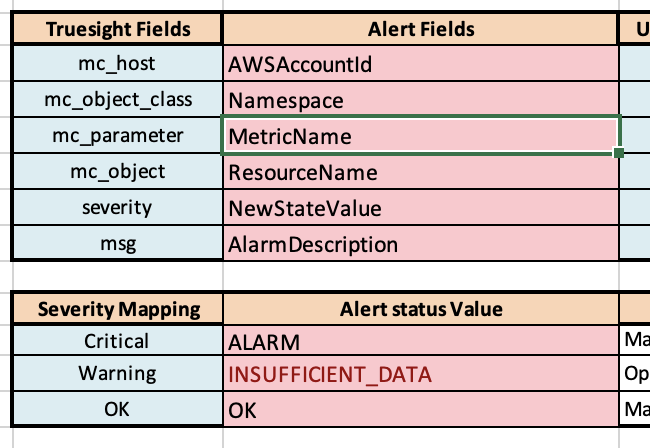
Check that the fields in red are filled in (the values shown below are an example).
If the client did not provide any specific parameters for the dictionary, use the default one available here.
Fill the dictionary#
Add PF team contact information in the file. They will be used to send you the API key information.
| Project Name | Requestor Name | Email address | Mailing list |
|---|---|---|---|
| Product Factory CLIENT_NAME | YOUR_FULL_NAME | YOUR_EMAIL | support.ngot@orange.com |
The image below shows an example for a client (FID)

Note
Old version : there was a - in the Project Name. This may cause a configuration issue in Truesight server (CAASINC-1802). We removed the -.
Note
If there is existing information, overwrite it with ours.
Important
The alert translation dictionary created in this section is added in the confluence page in the Dictionnaire de translation correspondant à notre demande de clé interne section.
-
Example 1
-
Example 2
Request an internal api key#
To request an internal api key, connect to Swan(21T) from "MonSi" or "MyTools" https://welcome.com.intraorange/.
- Allow pop-ups in your browser: Swan runs in a separate window.
- Click on "Catalog".
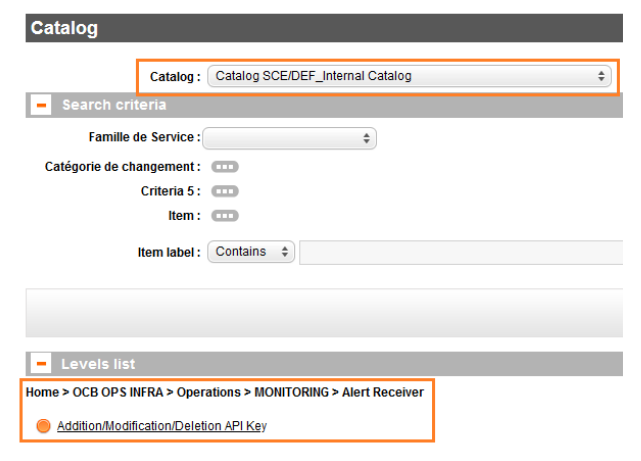
- Change the catalog to "Catalog SCE/DEF_Internal Catalog" or "Catalogue SCE/DEF_Catalogue Interne"
- And navigate in the levels list to choose: OCB OPS INFRA > Operations > MONITORING > Alert Receiver.
-
Then choose "Addition/Modification/Deletion API Key".
-
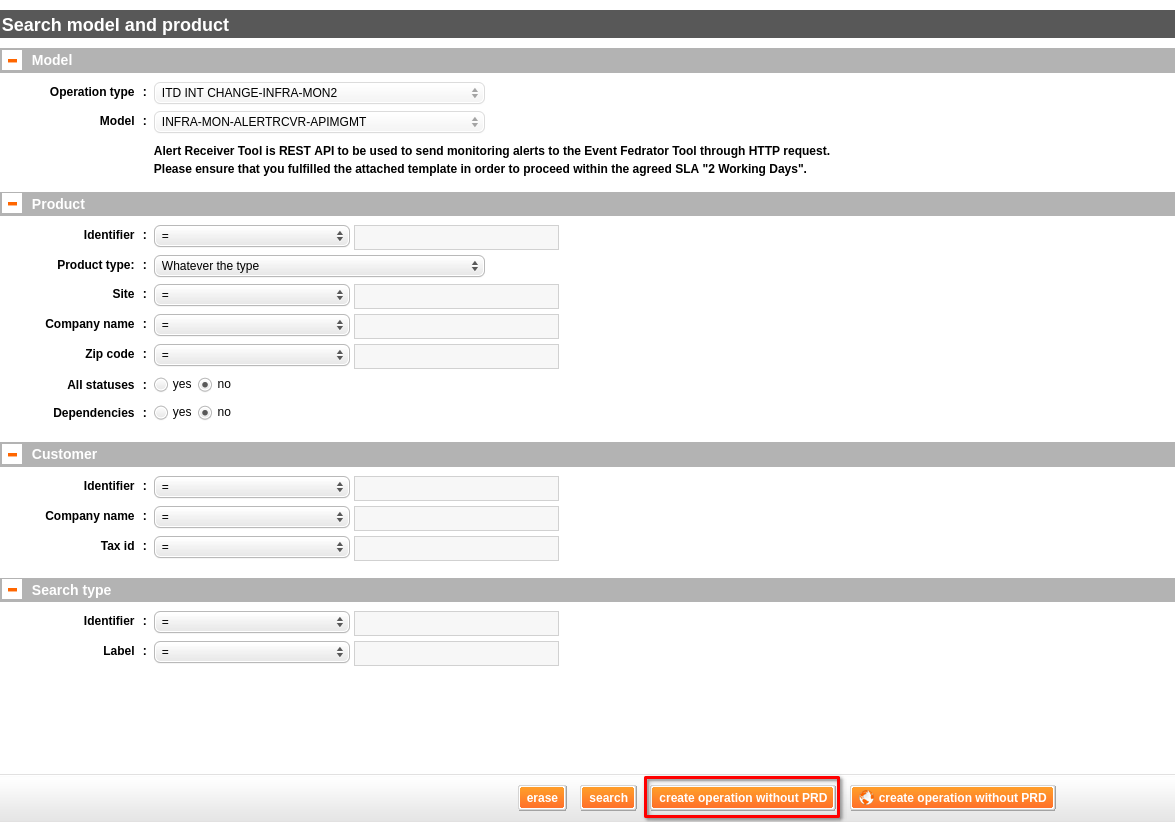
Create operation without PRD
-
Fill the fields of the request
Operation descriptionHello, I would like to request an API key and dictionary for Alert Receiver. The dictionary is in attachment. Thank you.- Initial start date = D+16 9h00
- Initial completion date = D+16 10h00
- Initial disruption duration = 1

- in the "attachments" tab, insert the dictionary attachment
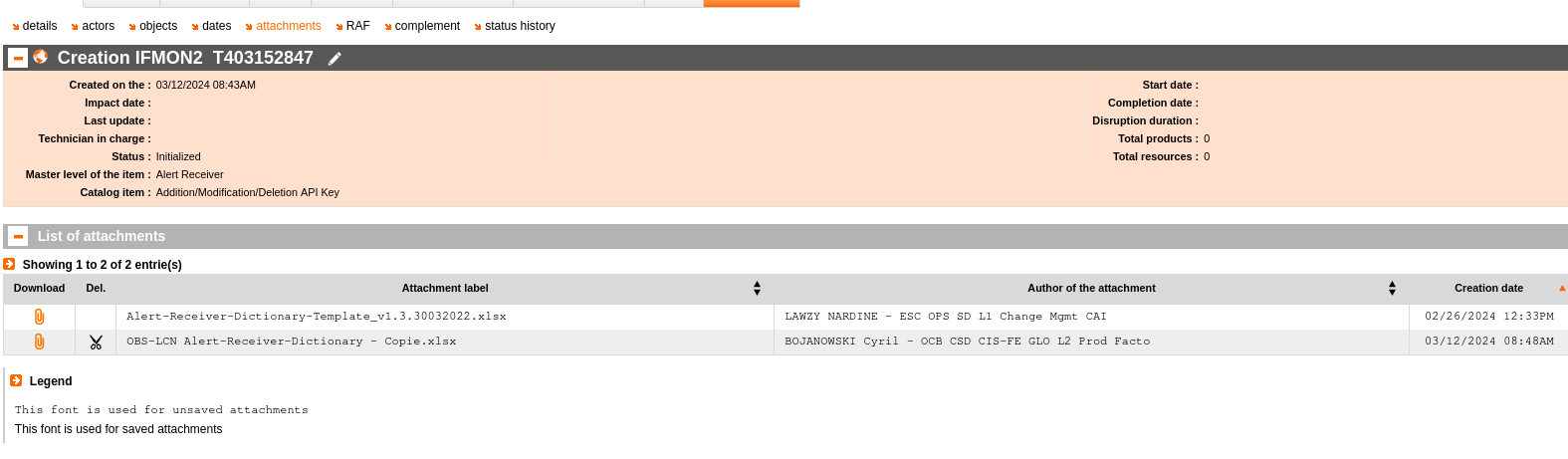
-
Submit the request with:


-
Change the additional field then re-submit
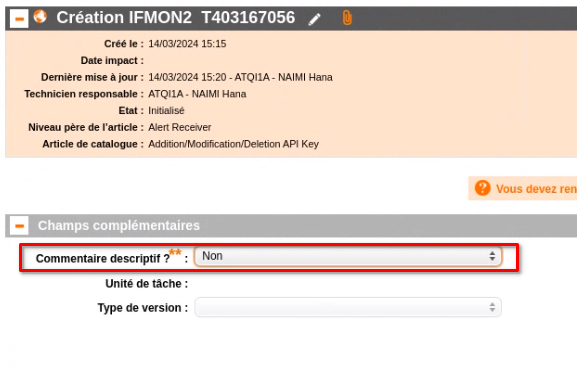
-
Check that your ticket has been sent
It must have the state
En qualification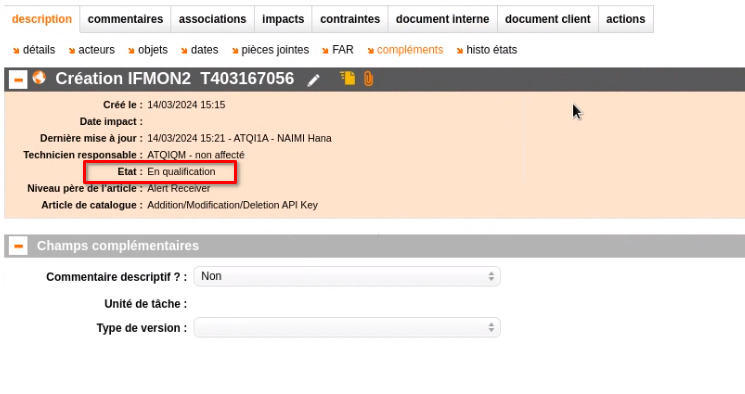
Once the request is processed, you will reveive by mail Alert Receiver apikey.
Important
Copy the request ID (T403167056 in the previous screenshots) in a secure place. There is now easy way to find it later.
You may copy it in the new or future client page in Confluence.
Deployment#
Tip
Deployment should not start before you received an e-mail from SWAN. Verify the request ID in the mail and the status of your request.
Two cases are possible : internal client or external client.
Internal client#
This case is for customers whose alerts are sent from our Alertmanager.
Prepare the merge request for the CAASCHR :
- by editing nginx-alertreceiver.cue configuration
#ZonesMonitoredByTruesight: ["lrdm", ..., "$new_client"] - by editing ngot zones with alertinghub target (only for ngot)
Prepare the CAASCHR.
External client#
This case is for clients whose alerts are sent from external sources.
Prepare the merge request for the CAASCHR by editing nginx-alertreceiver.cue configuration configuration :
#ZonesMonitoredByTruesight: ["lrdm", ..., "$new_client"]
Prepare the CAASCHR.