FE - RDS User's Guide#
For our clusters we'll deploy a single RDS instance which will host multiple databases. Our terraform code allows to have multiple instances per zones. At the present time we use only postgresql database, so only this case will be treated.
Database connection#
To connect to the database it is necessary to proxy via the bastion.
-
First get infra_zone_name and domain_name
ZONE_NAME=<zone> # Get infra zone name INFRA_ZONE_NAME=$(sd get zones | jq -r --arg ZONE ${ZONE_NAME} '.[$ZONE].infra_zone_name') DOMAIN_NAME=$(sd get zones | jq -r --arg ZONE ${INFRA_ZONE_NAME} '.[$ZONE].domain_name') export VAULT_ADDR=https://vault.${INFRA_ZONE_NAME}.${DOMAIN_NAME} -
If you need to connect to the postgres database list rds instances and get the secret:
# Discover rds instances vault list secret/zones/fe/${ZONE_NAME}/rds-instances Keys ---- caascad-rds-ocb-test06 # Get the admin secret RDS_INSTANCE_NAME=<rds instance name chosen from the previous list> export PG_PASSWORD=$(vault read secret/zones/fe/${ZONE}/rds-instances/${INSTANCE_NAME} -field password) DB_NAME=$(vault read secret/zones/fe/${ZONE}/rds-instances/${INSTANCE_NAME} -field name) DB_USER=$(vault read secret/zones/fe/${ZONE}/rds-instances/${INSTANCE_NAME} -field username) DB_PORT=$(vault read secret/zones/fe/${ZONE}/rds-instances/${INSTANCE_NAME} -field port) INSTANCE_IP=$(vault read secret/zones/fe/${ZONE}/rds-instances/${INSTANCE_NAME} -field private_ip) -
If you need to access to applications databases list rds db and get secret:
# Discover rds databases vault list secret/zones/fe/${ZONE_NAME}/rds/ Keys ---- concourse-infra/ concourse/ gitea/ keycloak/ logs-api # Read the app secret APP_NAME=<choose an app> export PG_PASSWORD=$(vault read secret/zones/fe/${ZONE}/rds/${APP_NAME}/db -field password) DB_NAME=$(vault read secret/zones/fe/${ZONE}/rds/${APP_NAME}/db -field name) DB_USER=$(vault read secret/zones/fe/${ZONE}/rds/${APP_NAME}/db -field username) DB_PORT=$(vault read secret/zones/fe/${ZONE}/rds/${APP_NAME}/db -field port) INSTANCE_IP=$(vault read secret/zones/fe/${ZONE}/rds/${APP_NAME}/db -field private_ip) -
Install the psql client
toolbox install pkgs.postgresql - or
nix-env -iA nixpkgs.postgresql -
Initiate a forwarding ssh socket
# get a freeport if [[ $OSTYPE =~ ^darwin ]]; then FREE_PORT=$(comm -23 <(seq 49152 65535 | sort) <(lsof -iTCP -sTCP:LISTEN -n -P | tail -n +2 | awk '{print $9 }' | cut -d: -f2 | sort -u) | head -n1) else FREE_PORT=$(comm -23 <(seq 49152 65535 | sort) <(ss -Htan | awk '{print $4}' | cut -d':' -f2 | sort -u) | head -n1) fi # prepare a socket file for ssh control TMP_FILE=$(mktemp) # start ssh tunnel ssh -M -S $TMP_FILE -fnNT bst.${ZONE_NAME}.${DOMAIN_NAME} -L ${FREE_PORT}:${INSTANCE_IP}:${DB_PORT} -
Connect to the rds instance
psql -U ${DB_USER} -p ${FREE_PORT} -h localhost -W ${DB_NAME} -
When everything is done do not forget to kill your ssh session:
ssh -S ${TMP_FILE} -O exit foo 2>/dev/null
Useful postgresql commands:#
- \l: list databases
- \c
: connect to a database - \dt: list tables
- \dt+: list tables with size
- \x: enables/disables expanded output
- \?: list all postgresql shortcuts
Viewing connections for databases#
Connect to the postgres database of the rds instance and type:
select pid as process_id,
       usename as username,
       datname as database_name,
       client_addr as client_address,
       application_name,
       backend_start,
       state,
       state_change
from pg_stat_activity;
 process_id | username  | database_name | client_address |    application_name    |         backend_start         | state  |         state_change
------------+-----------+---------------+----------------+------------------------+-------------------------------+--------+-------------------------------
      11278 |           |               |                |                        | 2022-03-08 14:29:58.868469+00 |        |
      11281 | rdsAdmin  |               |                |                        | 2022-03-08 14:29:58.869171+00 |        |
     294427 | rdsMetric | postgres      |                |                        | 2022-03-29 10:51:53.204314+00 | idle   | 2022-03-29 16:55:03.796888+00
    3637778 | keycloak  | keycloak      | 10.0.90.224    | PostgreSQL JDBC Driver | 2022-03-11 13:58:58.572475+00 | idle   | 2022-03-29 16:55:31.238077+00
     567700 | root      | postgres      | 185.23.92.100  | psql                   | 2022-03-29 16:14:40.574552+00 | active | 2022-03-29 16:55:41.891671+00
    3655540 | keycloak  | keycloak      | 10.0.252.205   | PostgreSQL JDBC Driver | 2022-03-15 00:35:21.831337+00 | idle   | 2022-03-29 16:55:38.229004+00
      11276 |           |               |                |                        | 2022-03-08 14:29:58.867994+00 |        |
      11275 |           |               |                |                        | 2022-03-08 14:29:58.867774+00 |        |
      11277 |           |               |                |                        | 2022-03-08 14:29:58.868276+00 |        |
(9 rows)
Viewing database CPU and RAM consumption#
Connect to the postgres database of the instance and type:
select procpid,
       usename,
       application_name,
       get_pid_cpu_mem(procpid).cpu_perc,
       get_pid_cpu_mem(procpid).mem_perc,
       current_query
from pg_stat_activity;
Edit system settings#
It is possible in pure POSTGRESQL to alter those settings via SQL, but it requires SUPERUSER permissions. In rds technology the root user does not have the SUPERUSER permission. Moreover Flexible Engine offers no API to edit those values. The only way to alter those settings is via Flexible Engine RDS Console. The console will warn you about some limitations around settings, and if it requires a service reboot. For example, editing max_connections requires to first increase max_connections on the read replicas and max_wal_senders on both instances. The setting needs a reboot.
Please note that there is no reason to increase max_connections or max_senders with our current model. The only connections made to the databases are initiated by applications, and all of them open only one connection.
Increase disk space#
Disk space can be increased without service inerruption. The setting can be set via envs-ng. Disk space can not be decreased.
Reboot instance#
RDS instances can be rebooted only via the console in instance management section.
Start a failover#
A failover can be forced via the console in instance management (Migrate standby DB instance).
Viewing replication status#
If it is a HA cluster, you can view replication status:
select * from pg_stat_replication;
Monitoring#
Via the console you can view error_logs and slow_query_logs. You can access those logs via the RDS console.
Automatic Backups#
Automatic backups are set up when trackbone created RDS instances.
Warning: Automatic backups will be deleted when the RDS instance is decommissionned. Backups will also be deleted when switching from a non-HA instance to a HA instance.
Manual backups will have to be implemented in order to keep persistent backups. The exact mechanism we will use is still under development. This documentation will be updated.
RDS Flavor Upgrades#
RDS flavors can be modifies from within the trackbone configuration file. Switching from one flavor to another will preserve all the data but will cause the RDS engine to become unavailable for the duration of the upgrade/downgrade (arounc 5 minutes)
Switching RDS HA Configuration#
RDS can be installed as either stand-alone or highly available. It is possible to switch from one configuration to another but the operation, albeit automatic, incures complete data loss. Moreover all automatic backups will be deleted during the configuration change. Essentially terraform will completely destroy the RDS instance and create a new one with the same name.
Before changing the HA configuration a manual backup should be taken in order to restore the data following the notes below.
Restoring a Complete RDS Instance#
A complete RDS instance can be restored from either a manual or an automatic backup. Automatic backups can either be full backups or incremental backups. Restoring is only possible from full backups. If data is required from a more restricted time range, we can use point in time restores.
Procedure#
Choose one of the existing backups as starting point:
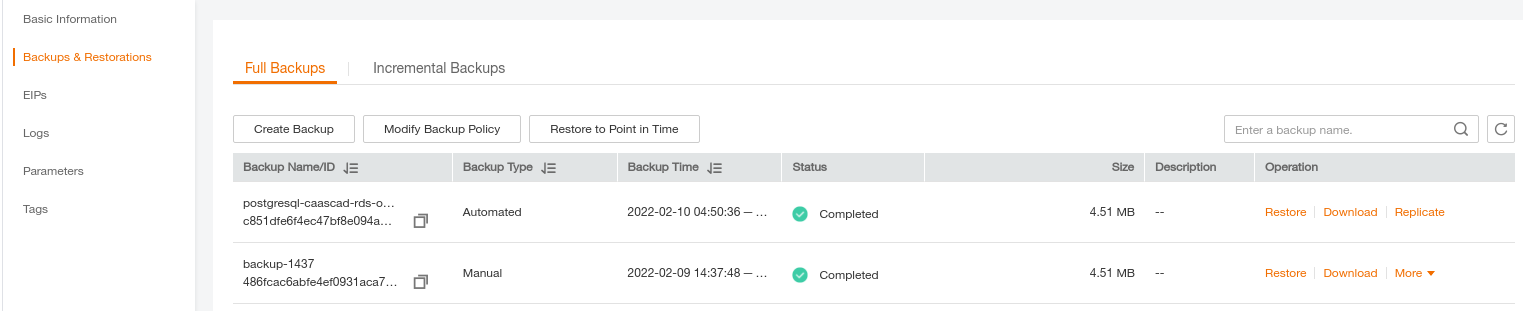
Either select Restore or Restore to Point in time. No matter which option you choose, FE offers the possibility to restore to the original RDS instance, to a new RDS instance or to an existing RDS instance. For our purposes, we are going to choose to restore to new instance which we will later use to dump/restore just one database 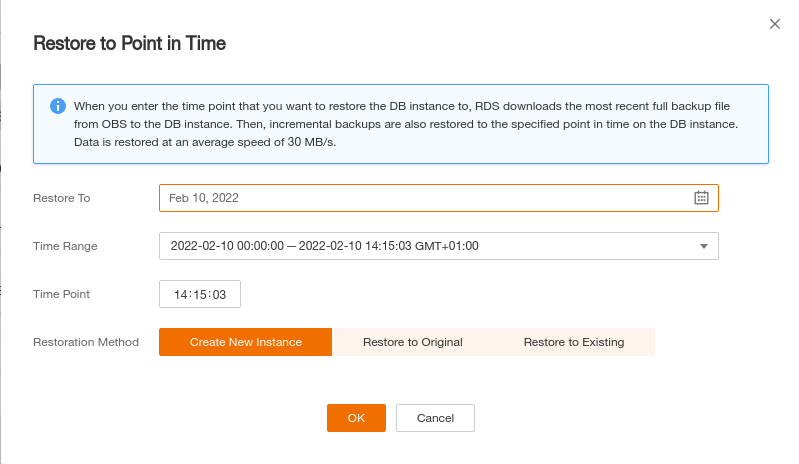
Fill out the form where necessary and wait for the instance to be created. The resulting instance will be an exact snapshot of the original RDS instance. It will include all the databases hosted by the original instance.
Restoring Specific Databases from an RDS Backup#
After restoring a RDS backup to a new instance we can proceed to restore specific databases only. This is done by performing a dump of the database from the newly created RDS instance followed by restoring the sql dump into the original RDS instance.
Procedure#
Dump the DB of interest using pg_dump#
In the example below we are creating an sql dump of the PF-582 DB. The dump is generated from the newly created RDS instance rds-7b67 (10.0.89.34). The sql dump is performed on the bastion server. Note: The postgresql client has to match the postgresql version used by RDS.
[cloud@bst ~]$ pg_dump -h 10.0.89.34 -p 5432 -U root -W -f dump.sql PF-582
Password:
[cloud@bst ~]$ cat dump.sql
--
-- PostgreSQL database dump
--

-- Dumped from database version 12.6
-- Dumped by pg_dump version 12.9

SET statement_timeout = 0;
[cloud@bst ~]$ psql -U root  -p 5432 -h 10.0.127.175 -W PF-582 < dump.sql
Password:
SET
SET
SET
[cloud@bst ~]$ psql -U root  -p 5432 -h 10.0.127.175 -W PF-582
Password:
psql (12.9, server 12.6)
SSL connection (protocol: TLSv1.2, cipher: ECDHE-RSA-AES256-GCM-SHA384, bits: 256, compression: off)
Type "help" for help.

PF-582=> select * from "Table1".testdata;
 id  |    comment
-----+----------------
   1 | blah
 100 | this is a test
   1 | blah
 100 | this is a test
(4 rows)

PF-582=>